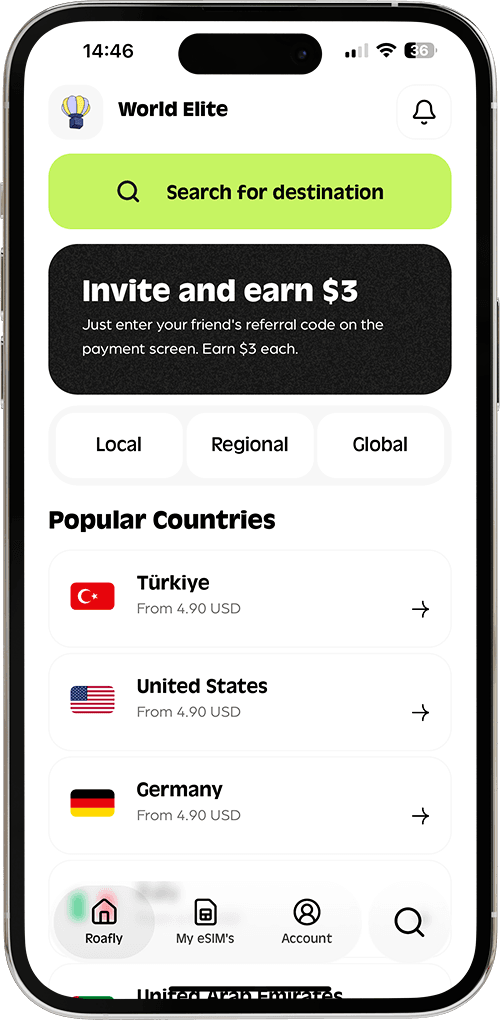

Als je je Roafly eSIM succesvol hebt geïnstalleerd en op je bestemming bent aangekomen, maar geen verbinding kunt maken met internet, volg dan deze stap-voor-stap checklist om het probleem binnen enkele minuten op te lossen:
Stap 1: Gebruik je de juiste Roafly eSIM? (Controleer ICCID)
Zorg ervoor dat je niet per ongeluk een oude eSIM hebt ingeschakeld. Controleer of het unieke ICCID-nummer van je eSIM overeenkomt.
-
In de Roafly-app: Ga naar Mijn eSIMs > tik op je actieve eSIM om het ICCID te zien.
-
Op iOS: Ga naar Instellingen > Algemeen > Info. Controleer het ICCID onder je actieve netwerk.
-
Op Android: Ga naar Instellingen > Verbindingen > SIM-beheer en tik op je eSIM.
👉 Hulp nodig bij het vinden? Zie: Hoe vind ik het ICCID van mijn eSIM?
Stap 2: Is je eSIM geselecteerd voor Mobiele gegevens?
Je telefoon probeert mogelijk nog steeds je thuis-SIM te gebruiken.
-
iOS: Ga naar Instellingen > Mobiel netwerk > Mobiele data en selecteer je Roafly eSIM.
-
Android: Ga naar Instellingen > Verbindingen > SIM-beheer. Stel Mobiele gegevens in op je Roafly eSIM.
Stap 3: Is Dataraming ingeschakeld?
Je Roafly eSIM moet Dataraming ingeschakeld hebben om in het buitenland te werken.
-
iOS: Instellingen > Mobiel netwerk > Tik op je Roafly eSIM > Schakel Dataraming AAN.
-
Android: Instellingen > Verbindingen > Mobiele netwerken > Schakel Dataraming AAN.
Stap 4: Is je APN correct ingesteld?
Als je volledige signaalbalken hebt maar geen internet, heb je mogelijk een handmatige APN nodig.
-
Controleer je Roafly-app (Mijn eSIMs > tik op Installeer eSIM > scroll naar beneden naar Stap 2/2) of je e-mail om te zien of je een specifieke APN moet invoeren. (👉 Zie: Hoe wijzig ik mijn APN-instellingen?
Stap 5: Selecteer het netwerk handmatig
Soms heeft je telefoon moeite om automatisch verbinding te maken.
-
Controleer eerst de ondersteunde netwerken in je Roafly-app onder je eSIM-details.
-
iOS: Instellingen > Mobiel netwerk > Tik op je eSIM > Netwerkselectie. Schakel "Automatisch" uit en selecteer het ondersteunde netwerk.
-
Android: Instellingen > Verbindingen > Mobiele netwerken > Netwerkoperators. Schakel "Automatisch selecteren" uit en kies het netwerk.
Stap 6: Schakel over van 5G naar 4G/LTE
Als het 5G-signaal zwak of onstabiel is in jouw omgeving, kan het forceren van je telefoon om 4G/LTE te gebruiken direct problemen met de gegevensstroom oplossen.
-
iOS: Instellingen > Mobiel netwerk > Tik op je Roafly eSIM > Gesprekken en data > Selecteer 4G of LTE.
-
Android: Instellingen > Verbindingen > Mobiele netwerken > Netwerkmodus > Selecteer LTE/3G/2G.
Stap 7: Controleer je Datamodus / Databesparing
Soms beperkt je telefoon het dataverbruik om je tegoed te besparen, wat kan voorkomen dat apps verbinding maken.
-
iOS: Ga naar Instellingen > Mobiel netwerk > [Roafly eSIM] > Datamodus. Zorg ervoor dat Standaard is geselecteerd. (Gebruik GEEN Lage datamodus, aangezien dit achtergronddata en synchronisatie beperkt).
-
Android: Ga naar Instellingen > Verbindingen > Gegevensgebruik. Zorg ervoor dat Databesparing is UITGESCHAKELD. (Opmerking: Sommige Android-modellen hebben ook "Lage datamodus" in de SIM-instellingen; zorg ervoor dat deze is uitgeschakeld).
Stap 8: Schakel VPN en Aangepaste DNS uit
Actieve VPN's of privé DNS-instellingen kunnen de mogelijkheid van je eSIM om verbinding te maken met de lokale netwerkprovider verstoren.
-
VPN: Open elke VPN-app die je gebruikt (bijv. NordVPN, ExpressVPN, Warp) en Verbreek de verbinding. Je kunt ook controleren via Instellingen > Algemeen > VPN & Apparaatbeheer op iOS om er zeker van te zijn dat er geen VPN actief is.
-
DNS: Als je een "Privé DNS" hebt ingesteld (zoals AdGuard), schakel dit dan terug naar Automatisch.
-
Android-pad: Instellingen > Verbindingen > Meer verbindingsinstellingen > Privé DNS > Automatisch.
-
Stap 9: Reset netwerkinstellingen
Als alles hierboven correct is, zit de netwerkcache van je apparaat mogelijk vast. (Opmerking: Dit wist je opgeslagen Wi-Fi-wachtwoorden, maar het is zeer effectief).
-
iOS: Instellingen > Algemeen > Zet iPhone over of stel opnieuw in > Stel opnieuw in > Herstel netwerkinstellingen.
-
Android: Instellingen > Algemeen beheer > Resetten > Netwerkinstellingen resetten.
Stap 10: Herstart je apparaat
Schakel tot slot de Vliegtuigmodus 30 seconden in en weer uit, of herstart je telefoon volledig om een nieuwe verbinding met de lokale zendmasten te forceren.