
If you feel your data is being consumed faster than expected, it is almost certainly due to hidden background activities on your smartphone. High-quality travel photos, video backups, and social media apps can drain Gigabytes in minutes without you even opening them.
Important Note on Data Usage: Roafly provides a transparent, direct connection to local networks. Roafly does not have the technical ability to interfere with, throttle, or "consume" your data manually. Your data consumption is determined entirely by your device’s apps and background settings.
Here is how to stop the "Data Leak" and make your Roafly plan last longer:
Step 1: Turn OFF "Wi-Fi Assist" (iOS) / "Switch to Mobile Data" (Android)
This is the #1 data killer. If your hotel Wi-Fi is weak, your phone will automatically use Roafly data to boost the speed without telling you.
-
iOS: Settings > Cellular > Scroll to the very bottom > Toggle Wi-Fi Assist to OFF.
-
Android: Settings > Connections > Wi-Fi > Intelligent Wi-Fi > Turn off "Switch to mobile data".
Step 2: Disable Automatic Photo/Video Backups
Your phone tries to upload every 4K video you take to the cloud (iCloud or Google Photos) instantly.
-
Fix: Go to your Photo Gallery/Cloud settings and ensure "Back up over Cellular/Mobile Data" is turned OFF.
Step 3: Turn OFF Background App Refresh
Apps like Instagram and TikTok download "new content" even when your phone is in your pocket.
-
iOS: Settings > General > Background App Refresh > Set to Wi-Fi only or Off.
-
Android: Settings > Connections > Data usage > Mobile data usage. Tap on heavy apps and toggle "Allow background data usage" to OFF.
Step 4: Use "Low Data Mode"
This is your "Panic Button" to stop all unnecessary data use with one click:
-
iOS: Settings > Cellular > Tap Roafly eSIM > Toggle Low Data Mode to ON.
-
Android: Settings > Connections > Data usage > Data saver > Toggle ON.
⚠️ Warning: Enabling "Low Data Mode" can sometimes interfere with your eSIM's connection or cause delays in background apps (like WhatsApp or Google Maps). If you experience any connectivity issues, please switch back to "Standard" mode to restore full performance.
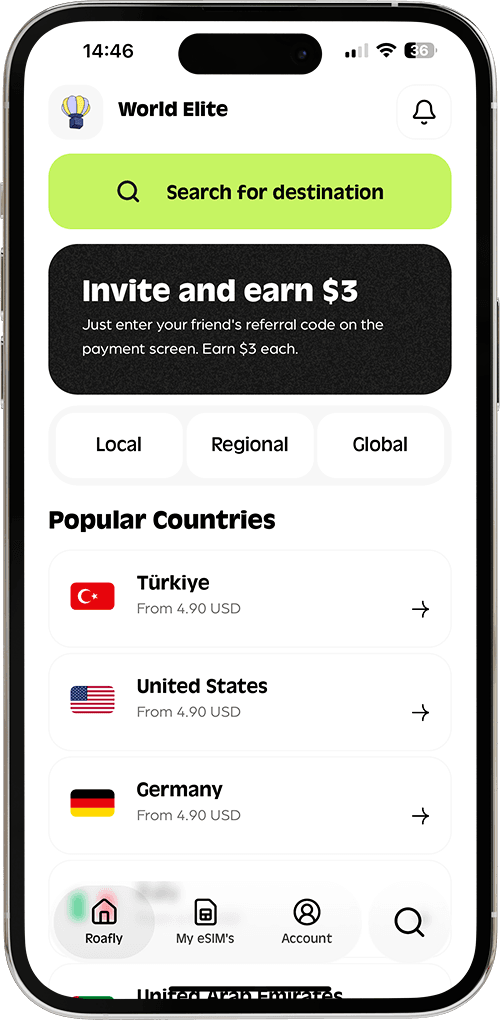
💡 Pro Tip: You can track your real-time usage directly in the Roafly app. If the numbers are increasing rapidly, check which apps are running in your phone's "Cellular Data" list to see the "data thief."