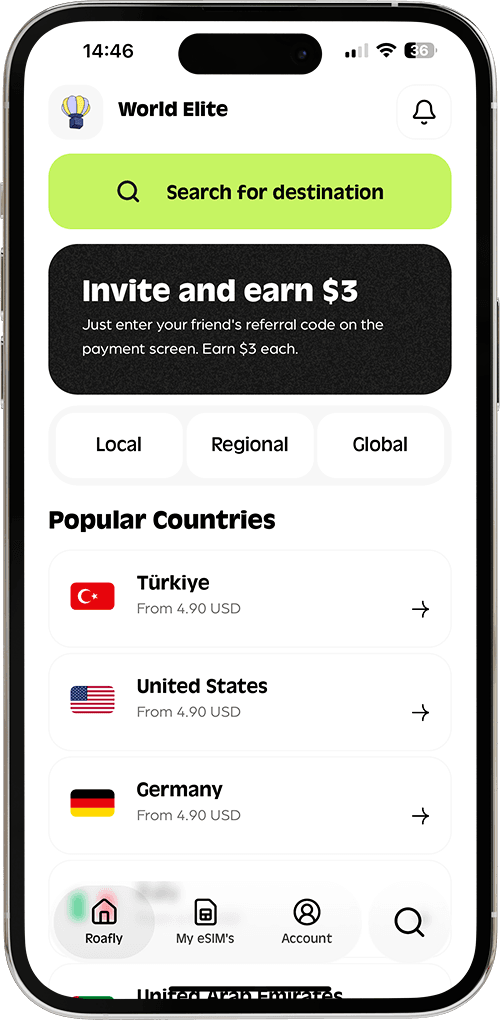

Hvis du har installeret dit Roafly eSIM og er ankommet til din destination, men ikke kan oprette forbindelse til internettet, bedes du følge denne trin-for-trin tjekliste for at løse problemet på få minutter:
Trin 1: Bruger du det korrekte Roafly eSIM? (Tjek ICCID)
Sørg for, at du ikke ved et uheld har aktiveret et gammelt eSIM. Sammenlign dit eSIM's unikke ICCID-nummer.
-
I Roafly-appen: Gå til Mine eSIM'er > tryk på dit aktive eSIM for at se dets ICCID.
-
På iOS: Gå til Indstillinger > Generelt > Om. Sammenlign ICCID under dit aktive netværk.
-
På Android: Gå til Indstillinger > Forbindelser > SIM-administrator og tryk på dit eSIM.
👉 Har du brug for hjælp til at finde det? Se: Hvordan finder jeg mit eSIM's ICCID?
Trin 2: Er dit eSIM valgt til mobildata?
Din telefon forsøger muligvis stadig at bruge dit hjemme-SIM.
-
iOS: Gå til Indstillinger > Mobilnetværk > Mobildata og vælg dit Roafly eSIM.
-
Android: Gå til Indstillinger > Forbindelser > SIM-administrator. Indstil Mobildata til dit Roafly eSIM.
Trin 3: Er dataroaming slået TIL?
Dit Roafly eSIM skal have dataroaming aktiveret for at fungere i udlandet.
-
iOS: Indstillinger > Mobilnetværk > Tryk på dit Roafly eSIM > Slå Dataroaming TIL.
-
Android: Indstillinger > Forbindelser > Mobilnetværk > Slå Dataroaming TIL.
Trin 4: Er din APN indstillet korrekt?
Hvis du har fuld signalstyrke, men intet internet, skal du muligvis bruge en manuel APN.
-
Tjek din Roafly-app (Mine eSIM'er > tryk på Installer eSIM > scroll ned til Trin 2/2) eller din e-mail for at se, om du skal indtaste en specifik APN. (👉 Se: Hvordan ændrer jeg mine APN-indstillinger?
Trin 5: Vælg netværket manuelt
Nogle gange har din telefon svært ved at oprette forbindelse automatisk.
-
Først skal du tjekke de understøttede netværk i din Roafly-app under dine eSIM-detaljer.
-
iOS: Indstillinger > Mobilnetværk > Tryk på dit eSIM > Netværksvalg. Slå "Automatisk" fra, og vælg det understøttede netværk.
-
Android: Indstillinger > Forbindelser > Mobilnetværk > Netværksoperatører. Slå "Vælg automatisk" fra, og vælg netværket.
Trin 6: Skift fra 5G til 4G/LTE
Hvis 5G-signalet er svagt eller ustabilt i dit område, kan du øjeblikkeligt løse problemer med dataflow ved at tvinge din telefon til at bruge 4G/LTE.
-
iOS: Indstillinger > Mobilnetværk > Tryk på dit Roafly eSIM > Stemme & Data > Vælg 4G eller LTE.
-
Android: Indstillinger > Forbindelser > Mobilnetværk > Netværkstilstand > Vælg LTE/3G/2G.
Trin 7: Tjek din Datatilstand / Datasparefunktion
Nogle gange begrænser din telefon dataforbruget for at spare på din saldo, hvilket kan forhindre apps i at oprette forbindelse.
-
iOS: Gå til Indstillinger > Mobilnetværk > [Roafly eSIM] > Datatilstand. Sørg for, at Standard er valgt. (Brug IKKE Lav datatilstand, da det begrænser baggrundsdata og synkronisering).
-
Android: Gå til Indstillinger > Forbindelser > Dataforbrug. Sørg for, at Datasparefunktion er slået FRA. (Bemærk: Nogle Android-modeller har også "Lav datatilstand" i SIM-indstillingerne; sørg for, at den er deaktiveret).
Trin 8: Deaktiver VPN og brugerdefineret DNS
Aktive VPN'er eller private DNS-indstillinger kan forstyrre dit eSIM's evne til at oprette forbindelse til den lokale netværksudbyder.
-
VPN: Åbn enhver VPN-app, du bruger (f.eks. NordVPN, ExpressVPN, Warp), og Afbryd forbindelse. Du kan også tjekke Indstillinger > Generelt > VPN & Enhedsadministration på iOS for at sikre, at ingen VPN er aktiv.
-
DNS: Hvis du har indstillet en "Privat DNS" (som AdGuard), skal du skifte den tilbage til Automatisk.
-
Android-sti: Indstillinger > Forbindelser > Flere forbindelsesindstillinger > Privat DNS > Automatisk.
-
Trin 9: Nulstil netværksindstillinger
Hvis alt ovenstående er korrekt, kan din enheds netværkscache sidde fast. (Bemærk: Dette vil slette dine gemte Wi-Fi-adgangskoder, men det er yderst effektivt).
-
iOS: Indstillinger > Generelt > Overfør eller nulstil iPhone > Nulstil > Nulstil netværksindstillinger.
-
Android: Indstillinger > Generel administration > Nulstil > Nulstil netværksindstillinger.
Trin 10: Genstart din enhed
Til sidst skal du slå Flytilstand til i 30 sekunder og derefter slå den fra, eller genstart din telefon helt for at tvinge en ny forbindelse til de lokale mobilmaster.