
Če se na vašem iPhonu ali iPadu prikaže pojavno okno z napisom "Ne morem aktivirati omrežja mobilnih podatkov: napaka pri avtentikaciji PDP", ne paničarite! To preprosto pomeni, da vaši napravi manjka pravilen APN (Access Point Name) za povezavo z internetom.
To je zelo pogosta težava sistema iOS, ki jo je mogoče odpraviti v samo minuti:
1. korak: Pridobite svoj edinstven APN
NE uporabljajte splošnih primerov. Svoje specifično ime APN lahko najdete na teh dveh mestih:
-
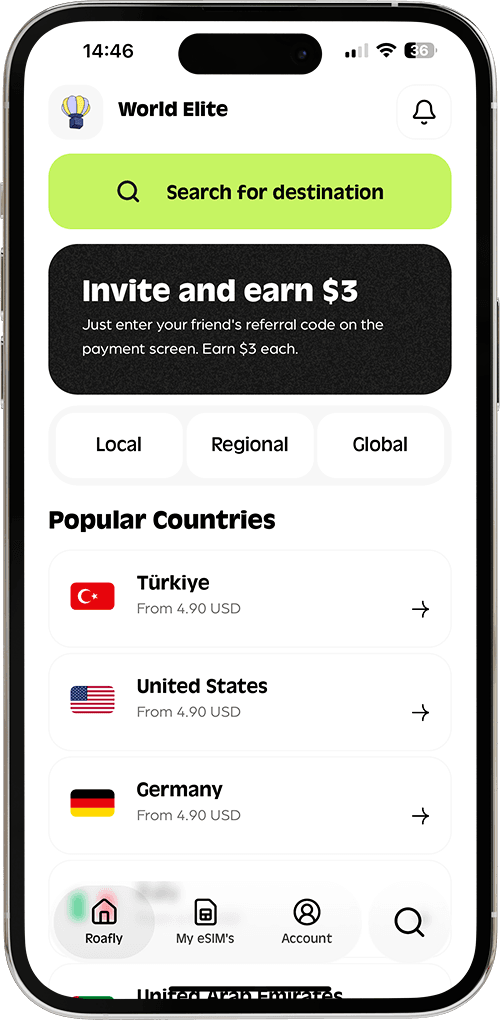
Aplikacija Roafly / Spletna stran: Pojdite na Moje eSIM-e > Podrobnosti eSIM-a in se pomaknite na dno strani.
-
E-pošta: Preverite svoje potrditveno e-poštno sporočilo o naročilu.
2. korak: Ročno vnesite APN
-
Pojdite na Nastavitve > Mobilni podatki (ali Cellular).
-
Izberite svoj eSIM.
-
Tapnite Omrežje mobilnih podatkov.
-
V polje APN (pod razdelkom Mobilni podatki) vnesite točno ime, ki ste ga našli v 1. koraku.
-
Polji Uporabniško ime in Geslo pustite prazni.
-
Pomembno: Vklopite in izklopite Letalski način (ali znova zaženite telefon), da aktivirate nove nastavitve.
3. korak: Ponastavite omrežne nastavitve Če je predpomnilnik omrežja vašega telefona zataknjen, vnos APN morda ne bo deloval takoj. Povezavo morate ponastaviti.
-
Pojdite na Nastavitve > Splošno > Prenesi ali ponastavi iPhone > Ponastavi > Ponastavi omrežne nastavitve. (Opomba: To je zelo učinkovito, vendar bo izbrisalo vaša shranjena gesla za Wi-Fi).
4. korak: Znova zaženite povezavo Po ponastavitvi omrežja ali kot končno osvežitev vklopite Letalski način za 30 sekund in ga nato izklopite, ali pa popolnoma znova zaženite telefon. To prisili vašo napravo, da z novo posodobljenim APN-jem pinga lokalne bazne postaje.
👉 Potrebujete več podrobnosti? Oglejte si naš celoten vodnik: Kako spremenim nastavitve APN?