
To use a Roafly eSIM on your iPhone or iPad, your device must be network-unlocked and have an eSIM chip. You can verify both in seconds.
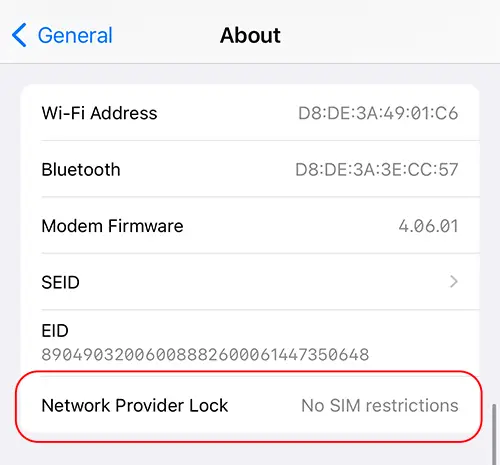
Step 1: Check for Carrier Lock (Crucial) Before checking anything else, ensure your device is allowed to use other networks:
-
Go to Settings > General > About.
-
Scroll down to find Carrier Lock (or Network Provider Lock).
-
It must say "No SIM restrictions". If it says anything else, your device is locked and cannot use any eSIM.
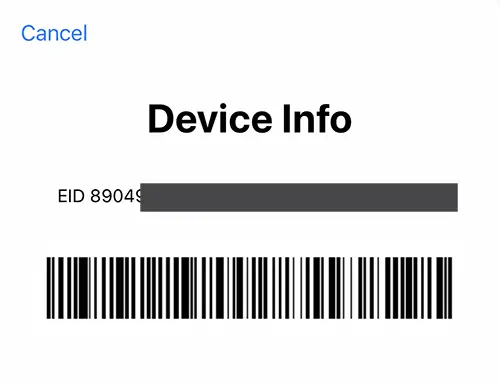
Step 2: Check for an EID Number (eSIM Capability) Every eSIM-compatible device has a 32-digit EID number. There are two easy ways to find it on your iPhone or iPad:
-
Method A (The Quickest Way): Open your Phone app and dial
*#06#. If a screen pops up displaying a barcode and a 32-digit EID number, your device supports eSIM! -
Method B (Through Settings): Go to Settings > General > About. Scroll down past the Wi-Fi and Bluetooth details. Look for a section named Available SIM or Digital SIM. If you see a 32-digit number next to the word EID, your device has an eSIM chip. (Note: If you only see IMEI and no EID, your device does not support eSIM).
⚠️ Step 3: The China/Hong Kong Exception Most iPhones purchased in Mainland China, Hong Kong, or Macau feature physical dual-SIM trays instead of eSIMs.
-
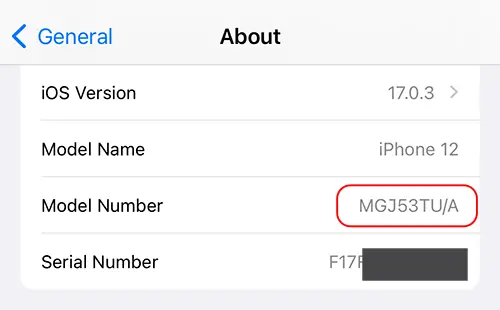
To check your region: Go to Settings > General > About and look at the Model Number (e.g., MN573LL/A).
-
If the letters right before the slash (
/) are CH, ZA, or ZP, your iPhone likely does not support eSIM.
What about iPads?
The steps are exactly the same. However, please note that your iPad must be a "Wi-Fi + Cellular" model. Standard Wi-Fi-only iPads do not support SIMs or eSIMs.