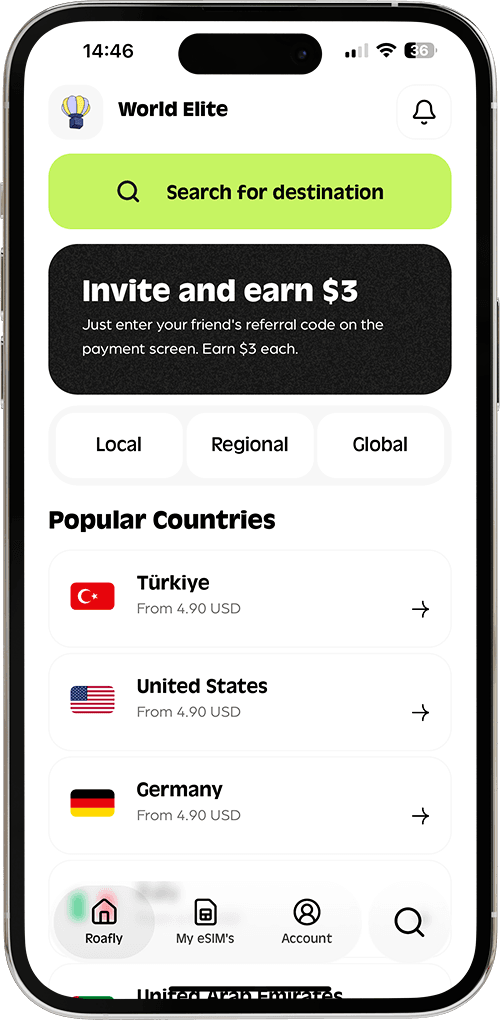

Hvis dit internet virker på din telefon, men du ikke kan dele det (Hotspot), betyder det som regel, at dine Personlig Hotspot APN-indstillinger er tomme.
⚠️ Vigtig advarsel: Hvert eSIM har en specifik APN. Brug IKKE et generisk ord. Du skal indtaste den nøjagtige APN, der er tildelt din specifikke Roafly-plan, ellers holder dit internet helt op med at virke.
Trin 1: Find DIN specifikke APN
Før du ændrer indstillinger, skal du finde den korrekte APN for dit nuværende eSIM:
-
Åbn Roafly-appen.
-
Gå til Mine eSIM'er > tryk på Installer eSIM > rul ned til Trin 2/2.
-
Bemærk ordet under afsnittet APN (f.eks.
data.esim,internet, ellerglobaldata).
Trin 2: Indtast APN i BEGGE felter (iOS)
På iPhone/iPad skal du indtaste dette ord to forskellige steder:
-
Gå til Indstillinger > Mobilnetværk > Vælg dit Roafly eSIM > Mobildatanetværk.
-
Første indtastning: Under afsnittet MOBILDATA øverst skal du indtaste dit specifikke APN-ord.
-
Anden indtastning: Rul helt ned til afsnittet PERSONLIG HOTSPOT. Indtast det PRÆCIS SAMME APN-ord her også.
-
Lad alle felter for brugernavn og adgangskode være tomme.
-
Genstart din Personlige Hotspot (Slå FRA og TIL).
Trin 3: Løs det på Android
-
Gå til Indstillinger > Forbindelser > Mobilnetværk > Adgangspunktnavne.
-
Tryk på din aktive Roafly APN-profil.
-
Rul ned til APN-type.
-
Sørg for, at den inkluderer
dun(f.eks.default,supl,dun). Hvisdunmangler, skal du tilføje det manuelt og Gemme. -
Genstart din Mobile Hotspot.
👉 Har du stadig problemer? Se vores komplette guide: Hvordan ændrer jeg mine APN-indstillinger?