

Whether you are using an iPhone or Android, follow these 5 steps to get online immediately.
Step 1: The #1 Culprit – Turn "Data Roaming" ON
This is the most common reason for connection failure. Since Roafly connects you to networks abroad, your phone considers this "Roaming." You must allow roaming for the Roafly eSIM (don't worry, this won't cause charges on your home SIM if you only enable it for Roafly).
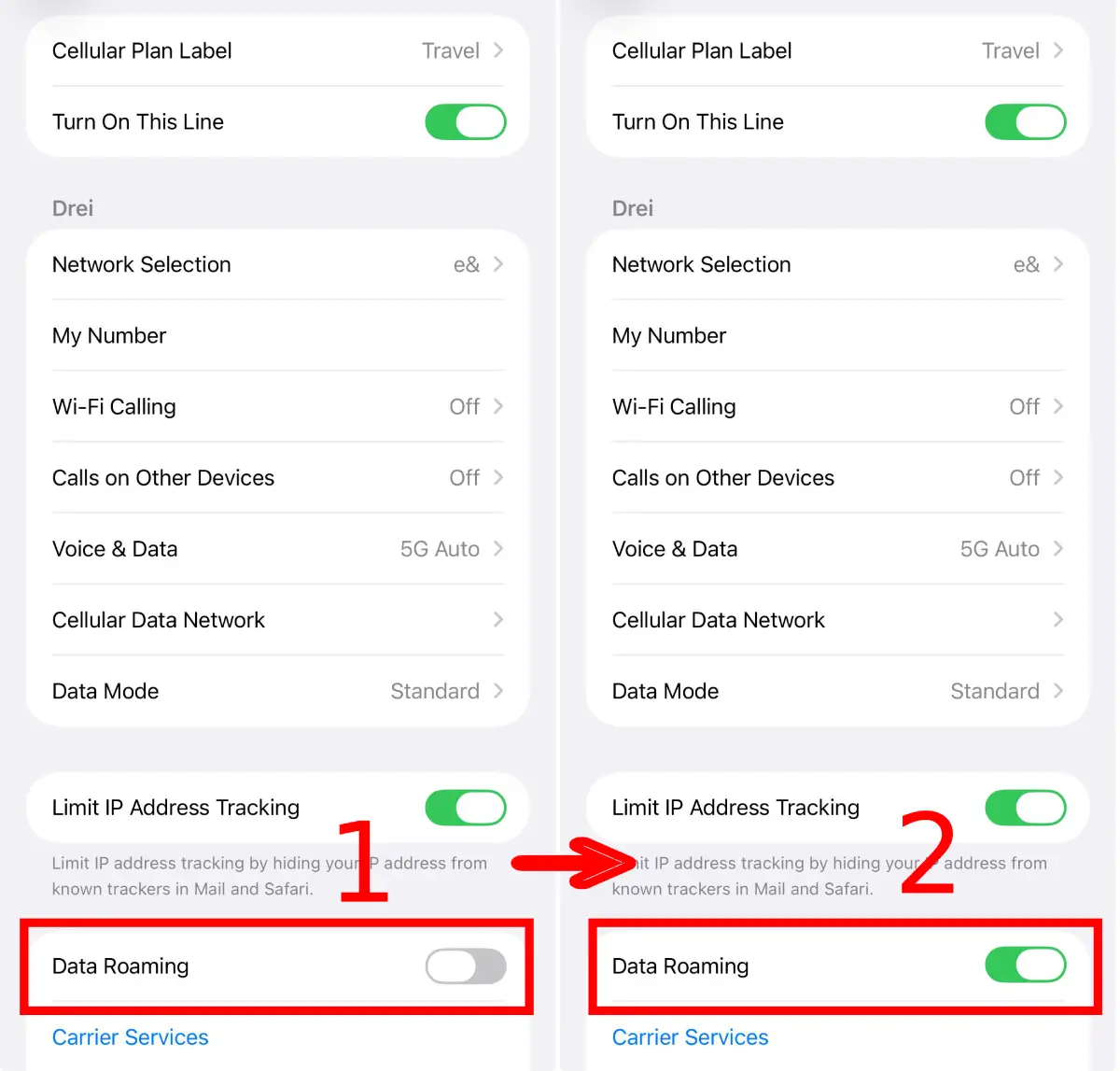
iOS (iPhone)
Go to Settings > Cellular (or Mobile Service) > Select your Roafly eSIM > Toggle Data Roaming ON.
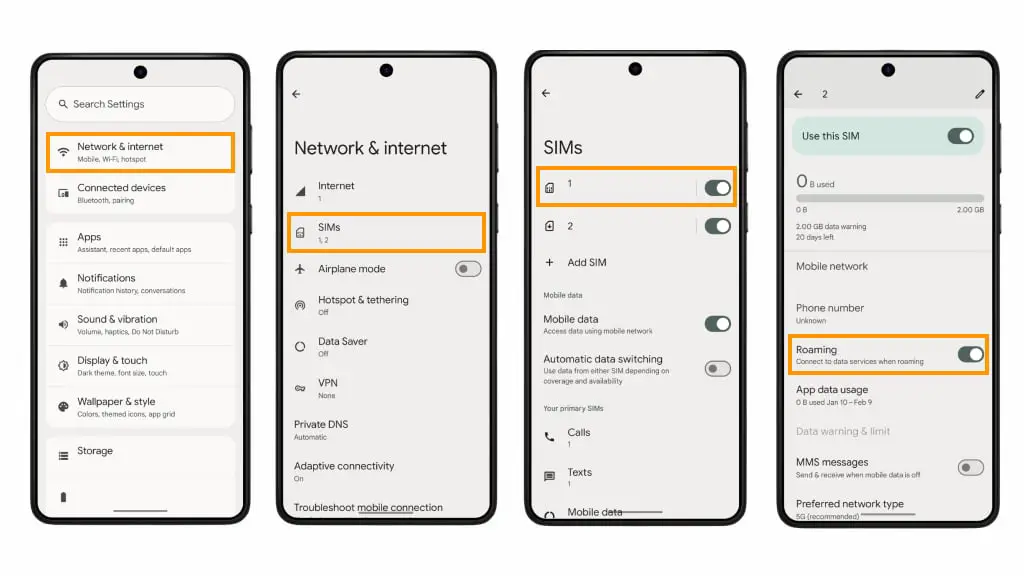
Android (Samsung/Pixel/Xiaomi/Other)
Go to Settings > Connections > Mobile Networks > Toggle Data Roaming ON.
Step 2: Select the Correct Line for "Mobile Data"
Your phone needs to know which SIM card to use for the internet. If it’s still trying to use your Home SIM, you won't have a connection.
-
iOS (iPhone):
-
Go to
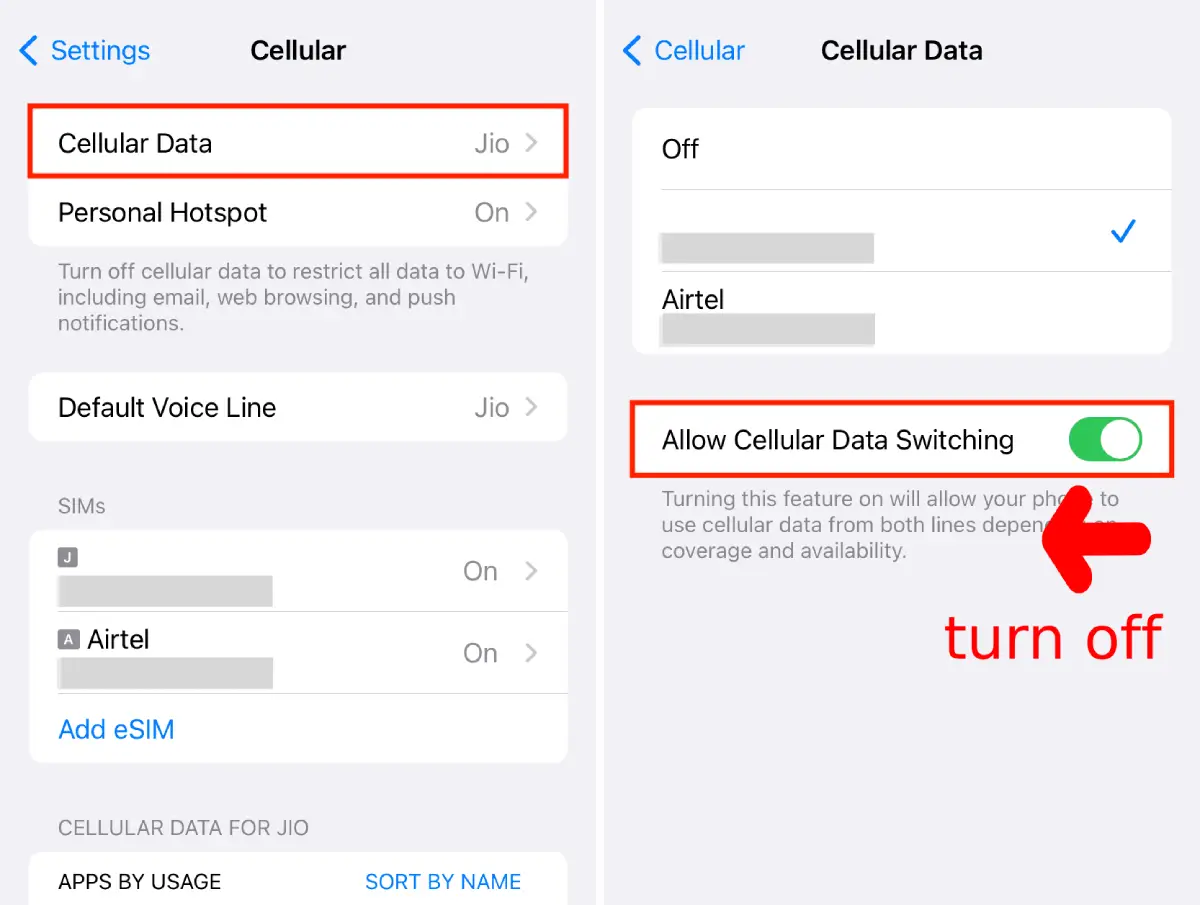
Settings>Cellular(orMobile Service) >Cellular Data. -
Select Roafly (or whatever you named your new eSIM).
-
CRITICAL: Turn OFF "Allow Cellular Data Switching". (If this is ON, your phone might try to switch back to your home SIM when the signal fluctuates, causing connection loss).
-
Android:
-
-
Go to
Settings>Connections>SIM Manager. -
Tap
Mobile Data. -
Select your Roafly eSIM.
-
Step 3: The "Too Many eSIMs" Confusion
Do you have 3, 4, or even 5 old eSIMs installed on your phone? Many frequent travelers forget to delete old plans. This causes a major issue: You might be trying to activate an old, expired eSIM instead of the new one.
How to Fix It:
-
Check the Names: Go to your SIM settings. Do you see multiple lines named "Travel", "Secondary" or "Personal"?
-
Label Them: Always rename your active eSIM (e.g., "Roafly Europe 2025") so you don't confuse it.
-
Clean Up: If you are unsure which one is active, turn off ALL other eSIMs and leave only the one you just installed ON.
-
Delete Old Ones: Please delete expired eSIMs from previous trips to prevent conflicts.
Step 4: Check APN Settings (If Data is Slow or Not Working)
Sometimes, phones don't automatically pull the correct "Access Point Name" (APN). You may need to enter it manually.
Where to find your APN?
Open the Roafly App > Go to My eSIMs > Click Details. You will see the specific APN info there.
-
iOS (iPhone): Go to
Settings>Cellular> Select Roafly eSIM >Cellular Data Network. Enter the APN in the "Cellular Data" (or Mobile Data) field. (Leave Username/Password blank unless stated otherwise in the app). -
Android: Go to
Settings>Connections>Mobile Networks>Access Point Names. Tap Add. Name it "Roafly" and enter the APN from the app. Save and select it.
Note for iPhone Users: In 99% of cases, iOS configures the APN settings automatically. You rarely need to enter this manually unless specifically asked by our support team.
Step 5: The "Airplane Mode" Reset
If all settings are correct but you still see "3G" or no bars, force your phone to search for a new tower.
-
Turn Airplane Mode ON.
-
Wait 15 seconds.
-
Turn Airplane Mode OFF.
-
Wait for the LTE/4G/5G symbol to appear.
Frequently Asked Questions (FAQ)
I have done everything, but it still won't connect.
Please contact our 24/7 Support Team via WhatsApp or Email. To help you faster, please provide:
-
Your Order Number or The ICCID of the eSIM (This is the long number starting with 89... found in your eSIM details).
-
A screenshot of your settings.
Should I turn off my Home SIM?
It is not mandatory, but we highly recommend turning your Home SIM OFF (or disabling "Turn On This Line" in settings) to ensure you don't accidentally use roaming on your primary carrier.
Can I delete and reinstall my eSIM if it's not working?
NO! Never delete your eSIM. eSIM QR codes are typically one-time use. If you delete it, you cannot scan it again to reinstall it. If you are having issues, please contact support before deleting anything.
Can I make regular phone calls or send SMS?
No, Roafly eSIMs are data-only. You cannot make traditional voice calls or send SMS texts. However, you can use internet-based apps like WhatsApp, FaceTime, Telegram, or Viber to make calls and send messages normally.
Why does it say "Activating..." or "No Service" while I am still at home?
This is completely normal. The eSIM cannot fully activate until it connects to the local network in your destination country. Once you land and turn off Airplane Mode, it will connect.
My internet speed is slow (3G). How can I fix it?
This often happens when the phone gets stuck on a weak tower. Toggle Airplane Mode ON for 10 seconds and turn it OFF. This forces your phone to search for the strongest 4G/5G signal nearby.