
⚠️ Antes de começar: Certifique-se de que seu dispositivo está desbloqueado de rede, você tem uma conexão Wi-Fi estável e sua VPN está desativada. Não exclua seu eSIM depois de instalado, pois ele não poderá ser recuperado.
1. Instalação Direta (Universal & Mais Rápida) Não importa qual marca de Android você usa, esta é a maneira mais fácil. Não são necessários códigos QR.
-
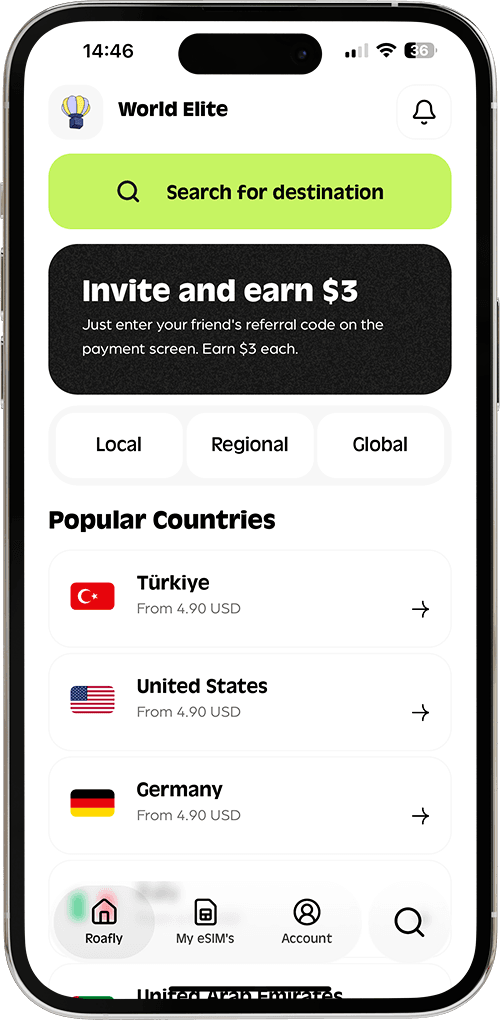
Abra o Aplicativo Roafly.
-
Vá para Meus eSIMs e selecione seu plano comprado.
-
Toque em "Instalar eSIM" e siga as instruções na tela. Seu telefone fará o resto!
2. Código QR ou Instalação Manual (Por Marca) Se você precisar escanear um código QR de outra tela ou inserir os detalhes manualmente, os passos diferem ligeiramente dependendo da marca do seu telefone:
-
Para Dispositivos Samsung Galaxy:
-
Vá para Configurações > Conexões > Gerenciador de SIM.
-
Toque em Adicionar eSIM.
-
Escolha "Escanear código QR do provedor de serviços" (ou insira os detalhes SM-DP+ manualmente).
-
-
Para Dispositivos Google Pixel:
-
Vá para Configurações > Rede e internet.
-
Toque no + sinal ao lado de SIMs.
-
Toque em "Baixar um SIM em vez disso?" e escaneie seu código QR.
-
-
Para Outros Androids (Xiaomi, Oppo, etc.): Geralmente, você pode encontrar isso indo para Configurações > Redes Móveis (ou Cartões SIM) > Adicionar eSIM.
Como ATIVAR seu eSIM (Quando você chegar): Assim que você pousar, volte para as configurações de SIM/Rede do seu telefone. Certifique-se de que seu eSIM Roafly está LIGADO, selecione-o como sua conexão principal de Dados Móveis, e certifique-se de que o Roaming de Dados está ativado para o eSIM Roafly.
👉 Precisa de ajuda visual? Para capturas de tela passo a passo de todas as marcas Android, por favor, visite nosso Guia Detalhado de Instalação Android