If your internet works on your phone but you cannot share it (Hotspot), it usually means your Personal Hotspot APN settings are empty.
⚠️ Crucial Warning: Every eSIM has a specific APN. Do NOT use a generic word. You must enter the exact APN assigned to your specific Roafly plan, or your internet will stop working entirely.
Step 1: Find YOUR specific APN
Before you change any settings, find the correct APN for your current eSIM:
-
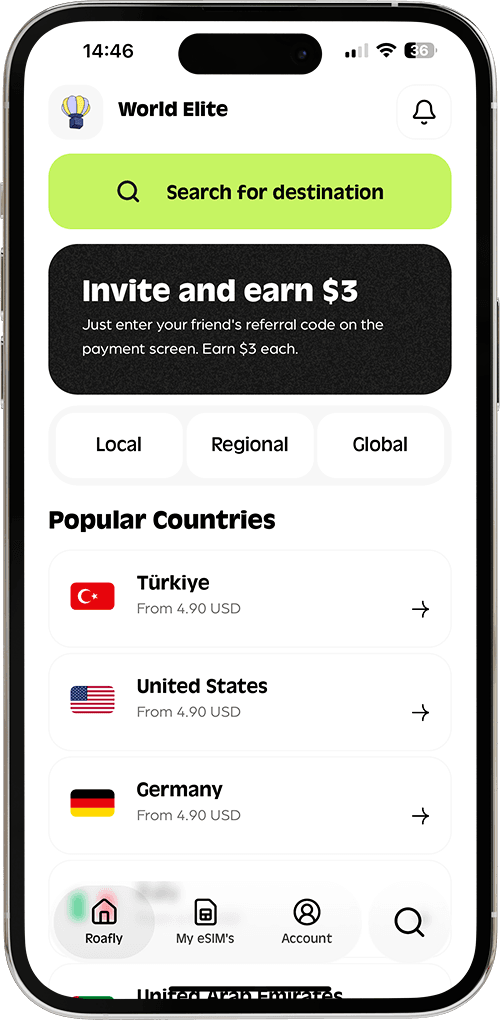
Open the Roafly app.
-
Go to My eSIMs > tap Install eSIM > scroll down to Step 2/2.
-
Take note of the word under the APN section (e.g.,
data.esim,internet, orglobaldata).
Step 2: Enter the APN in BOTH fields (iOS)
On iPhone/iPad, you must enter this word in two different places:
-
Go to Settings > Cellular > Select your Roafly eSIM > Cellular Data Network.
-
First Entry: Under the CELLULAR DATA section at the top, enter your specific APN word.
-
Second Entry: Scroll all the way to the bottom to the PERSONAL HOTSPOT section. Enter the EXACT SAME APN word here as well.
-
Leave all Username and Password fields blank.
-
Restart your Personal Hotspot (Toggle OFF and ON).
Step 3: Fix it on Android
-
Go to Settings > Connections > Mobile Networks > Access Point Names.
-
Tap on your active Roafly APN profile.
-
Scroll down to APN Type.
-
Ensure it includes
dun(e.g.,default,supl,dun). Ifdunis missing, add it manually and Save. -
Restart your Mobile Hotspot.
👉 Still having issues? See our full guide: How do I change my APN settings?
