
Om du har fulla signalstaplar men inte kan ansluta till internet, behöver du troligen uppdatera din APN (Access Point Name) manuellt.
Var du hittar dina APN-detaljer:
-
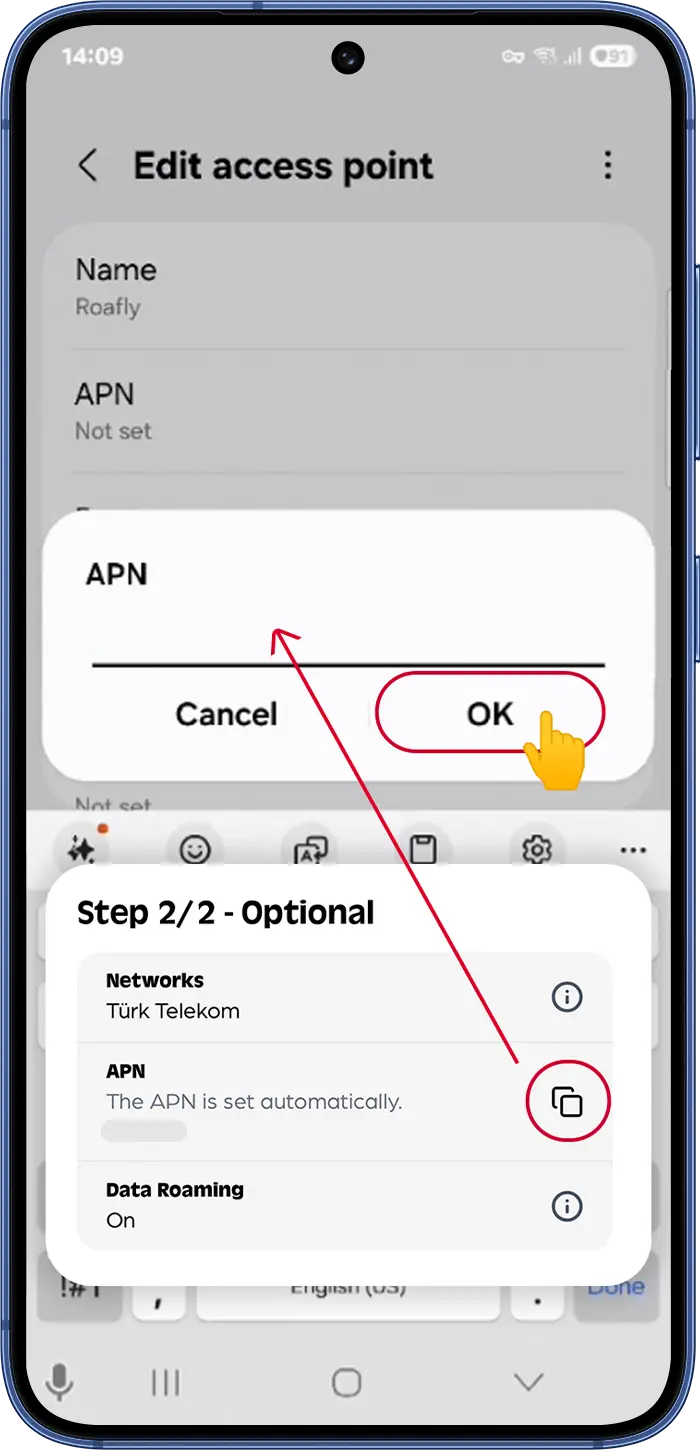
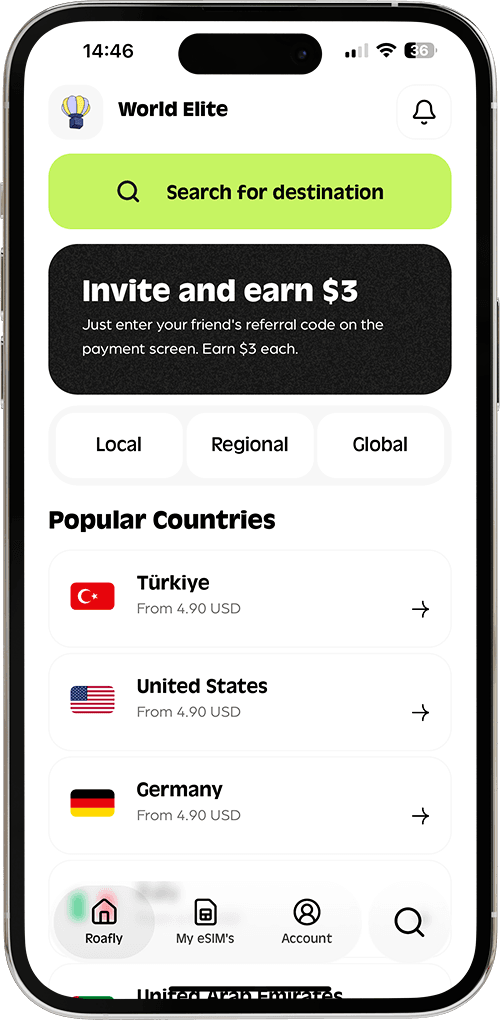
I Roafly-appen: Gå till Mina eSIM > Välj din aktiva eSIM > Installera eSIM -> Steg 2/2 - Valfritt.
-
I din e-post: Kontrollera e-postmeddelandet med eSIM-installationsinstruktionerna som vi skickade dig direkt efter ditt köp.
Hur du ändrar din APN på iOS (iPhone/iPad):
-
Gå till Inställningar > Mobilnät (eller Mobiltjänst) och välj din eSIM.
-
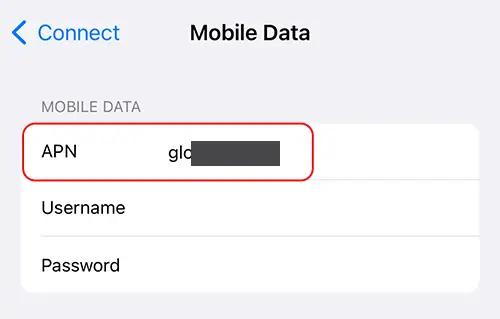
Tryck på Mobildatanätverk.
-
I APN-fältet, ange det specifika APN-namnet som finns i din orderbekräftelse via e-post, Roafly-appen, eller webbplatsen (eSIM-detaljer).
-
Viktigt: Varje eSIM har en unik APN. Använd INTE exempelinställningar som "internet" om det inte uttryckligen är tilldelat din plan.
-
Lämna fälten Användarnamn och Lösenord tomma.
Hur du ställer in din APN på Android
-
Gå till Inställningar > Anslutningar > Mobilnät > Åtkomstpunktsnamn.
-
Se till att din eSIM är vald (vanligtvis längst ner eller överst på skärmen).
-
Tryck på Lägg till (eller + ikonen).
-
I både fälten Namn och APN, skriv det specifika APN-namnet som finns i din orderbekräftelse via e-post, Roafly-appen, eller webbplatsen (eSIM-detaljer).
Obs: Varje eSIM har en unik APN. Använd INTE generiska exempel som "internet"; använd endast den som är tilldelad din specifika plan.
-
Tryck på menyn med tre punkter (uppe till höger), välj Spara, och se till att denna nya APN är vald.
⚠️ Sista steget: Slå på och av flygplansläge, eller starta om telefonen för att tillämpa de nya inställningarna.