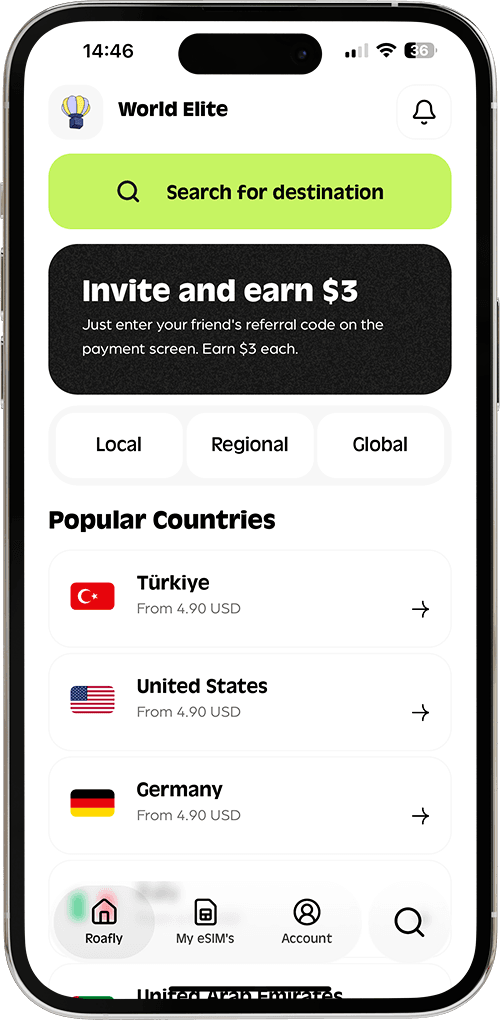

यदि आपको अपने Roafly eSIM को इंस्टॉल करने के बाद iMessage या FaceTime के तहत एक घूमता हुआ पहिया या "सक्रियण की प्रतीक्षा है" संदेश दिखाई देता है, तो चिंता न करें। ऐसा इसलिए होता है क्योंकि आपका फ़ोन Roafly eSIM के आंतरिक तकनीकी नंबर का उपयोग करके इन सेवाओं को सक्रिय करने का प्रयास कर रहा है, जो केवल डेटा के लिए है और SMS या कॉल का समर्थन नहीं करता है।
इसे ठीक करने और अपनी पहचान के साथ iMessage का उपयोग जारी रखने के लिए, इन चरणों का पालन करें:
चरण 1: अपने iMessage को अपने प्राथमिक नंबर/ईमेल से जोड़कर रखें
आपका Roafly eSIM हाई-स्पीड डेटा प्रदान करता है, लेकिन आपका iMessage आपके घर के फ़ोन नंबर या आपके Apple ID ईमेल से जुड़ा रहना चाहिए।
-
Go to सेटिंग्स > संदेश।
-
Tap भेजें और प्राप्त करें।
-
सुनिश्चित करें कि आपका घर का फ़ोन नंबर (प्राथमिक SIM) और आपका Apple ID ईमेल चेक किए गए हैं।
-
अनचेक करें Roafly eSIM से जुड़े किसी भी अज्ञात या अस्थायी नंबर को।
चरण 2: iMessage के लिए अपनी प्राथमिक SIM सेट करें (यदि अभी भी सक्रिय है)
यदि आप कॉल/SMS के लिए अपनी होम SIM चालू रख रहे हैं (रोमिंग बंद के साथ), तो सुनिश्चित करें कि यह iMessage के लिए डिफ़ॉल्ट बनी रहे:
-
Go to सेटिंग्स > सेलुलर।
-
Tap अपनी प्राथमिक (होम) SIM।
-
सुनिश्चित करें कि यह iMessage और FaceTime के लिए चालू है।
चरण 3: साइन आउट करें और फिर से साइन इन करें (रीसेट)
यदि यह अभी भी अटका हुआ है:
-
Go to सेटिंग्स > संदेश > Toggle iMessage बंद करें।
-
Go to सेटिंग्स > FaceTime > Toggle FaceTime बंद करें।
-
अपने iPhone को रीस्टार्ट करें।
-
Toggle दोनों iMessage और FaceTime को फिर से चालू करें। आपका iPhone अब आपकी Apple ID का उपयोग करके आपके सक्रिय Roafly डेटा कनेक्शन के माध्यम से इन सेवाओं को सही ढंग से रूट करेगा।
💡 प्रो टिप: अपने होम प्रोवाइडर से महंगे रोमिंग शुल्क से बचने के लिए, SMS सक्रियण के लिए कभी भी अपने Roafly eSIM के तकनीकी नंबर का उपयोग न करें। यात्रा करते समय iMessage के लिए हमेशा अपनी Apple ID (ईमेल) का उपयोग करें!