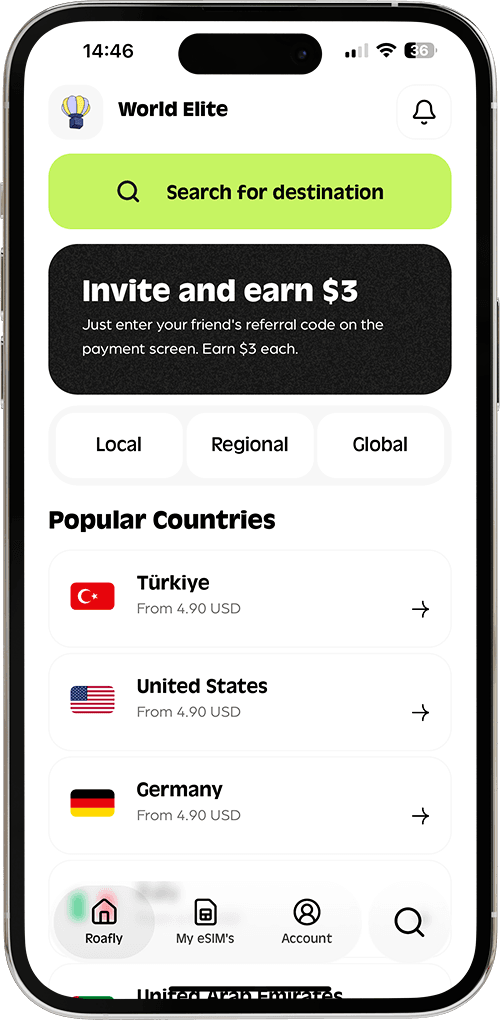

휴대폰에 여러 개의 SIM 또는 eSIM이 있는 경우, 모바일 데이터가 올바른 Roafly 프로필에 연결되어 있는지 확인해야 합니다. 잘못된 회선을 사용하면 통신사로부터 비싼 로밍 요금이 부과될 수 있습니다.
다음 단계에 따라 활성 Roafly eSIM을 찾고 확인하세요.
1단계: Roafly "키" (ICCID) 식별
모든 eSIM에는 ICCID라고 불리는 고유한 19자리 또는 20자리 일련번호가 있습니다.
-
Roafly 앱을 엽니다.
-
내 eSIM > 활성 요금제를 탭합니다.
-
ICCID (
89...로 시작)를 찾습니다. 이것은 Roafly 요금제의 "ID 카드"입니다. -
이 화면을 열어두거나 마지막 4자리를 복사합니다.
2단계: 기기 설정 확인
iOS (iPhone/iPad)의 경우:
여러 "보조", "개인", "여행", "업무" 레이블이 있을 수 있으므로, Roafly 회선을 찾으려면 다음 순서를 정확히 따르세요.
-
회선 켜기: * 설정 > 셀룰러 (또는 모바일 데이터)로 이동합니다.
-
SIM 아래에서 기본 회선이 아닌 회선(예: 보조 또는 여행)을 탭합니다.
-
"이 회선 켜기"를 켦으로 전환합니다.
-
-
ID 확인: * 이제 설정 > 일반 > 정보로 이동합니다.
-
맨 아래로 스크롤합니다. 방금 켠 회선에 대한 섹션이 표시됩니다.
-
ICCID (89... 번호)를 찾습니다.
-
-
일치 및 레이블 지정:
-
✅ 일치하나요? 이것이 당신의 Roafly eSIM입니다! 셀룰러로 돌아가서 이 회선을 탭하고 셀룰러 요금제 레이블을 탭한 다음 "Roafly"로 이름을 변경합니다.
-
❌ 일치하지 않나요? 셀룰러로 돌아가서 해당 회선을 끄고, 올바른 eSIM을 찾을 때까지 다음 사용 가능한 eSIM으로 단계를 반복합니다.
-
Android (Samsung, Pixel 등)의 경우:
Android 메뉴는 브랜드에 따라 다를 수 있지만, ICCID는 일반적으로 eSIM 설정 내에서 직접 찾을 수 있습니다. 먼저 eSIM이 켜져 있는지 확인하세요.
Samsung Galaxy 기기의 경우:
-
설정 > 연결 > SIM 관리자로 이동합니다.
-
활성 eSIM 중 하나를 탭합니다.
-
추가 정보를 탭합니다 (또는 아래로 스크롤합니다).
-
ICCID (89... 번호)를 찾습니다.
-
✅ 일치하나요? eSIM 이름을 "Roafly"로 변경합니다.
-
❌ 일치하지 않나요? 다른 활성 eSIM을 확인합니다.
-
Google Pixel 및 기타 Android의 경우:
- 설정 > 네트워크 및 인터넷 > SIM으로 이동합니다.
- 활성 eSIM 프로필을 선택합니다.
- 페이지 맨 아래로 스크롤합니다.
- "SIM 정보" 또는 "기술" 섹션 바로 아래에 ICCID가 표시됩니다.
✅ 일치하나요? 상단의 편집 (연필 아이콘)을 탭하고 "Roafly"로 이름을 변경합니다.
3단계: "최종 수정" 체크리스트
올바른 eSIM을 식별했다면, 휴대폰이 실제로 인터넷에 해당 eSIM을 사용하고 있는지 확인하세요.
-
기본값으로 설정: 모바일 데이터 (또는 셀룰러 데이터)로 이동하여 Roafly eSIM이 활성 회선으로 선택되어 있는지 확인합니다.
-
데이터 로밍: "데이터 로밍"이 Roafly eSIM에 대해서만 켬으로 전환되어 있는지 확인합니다.
-
기본 회선: 실수로 요금이 부과되는 것을 방지하기 위해 홈 SIM (기본)의 "데이터 로밍"이 끔으로 전환되어 있는지 확인합니다.
-
네트워크 선택: 신호 막대는 있지만 인터넷이 안 되는 경우, Roafly 회선에 대해 "네트워크 선택"이 자동으로 설정되어 있는지 확인합니다.
💡 왜 이것이 중요한가요?
-
일반적인 이름: 휴대폰은 종종 새 eSIM의 이름을 기본적으로 "보조" 또는 "업무"로 지정합니다. ICCID를 확인하지 않으면 잘못된 요금제를 켤 수 있습니다.
-
"유령" 로밍 방지: 실수로 기본 회선을 데이터용으로 켜두면 Roafly eSIM이 설치되어 있더라도 통신사에서 로밍 요금을 부과합니다.
👉 여전히 확실하지 않나요? 설정의 ICCID가 앱의 어떤 것과도 일치하지 않으면 eSIM이 아직 설치되지 않았을 수 있습니다.
참조: