
⚠️ Enne alustamist: Veenduge, et teie seade on võrguvaba, teil on stabiilne Wi-Fi ühendus ja teie VPN on välja lülitatud. Ärge kustutage oma eSIM-i pärast selle installimist, kuna seda ei saa taastada.
Roafly pakub kolme viisi eSIM-i installimiseks. Kiireima kogemuse saamiseks soovitame tungivalt otseinstalli meetodit.
1. Otseinstallimine (soovitatav ja kiireim) Pole vaja teist ekraani ega koodide skannimist.
-
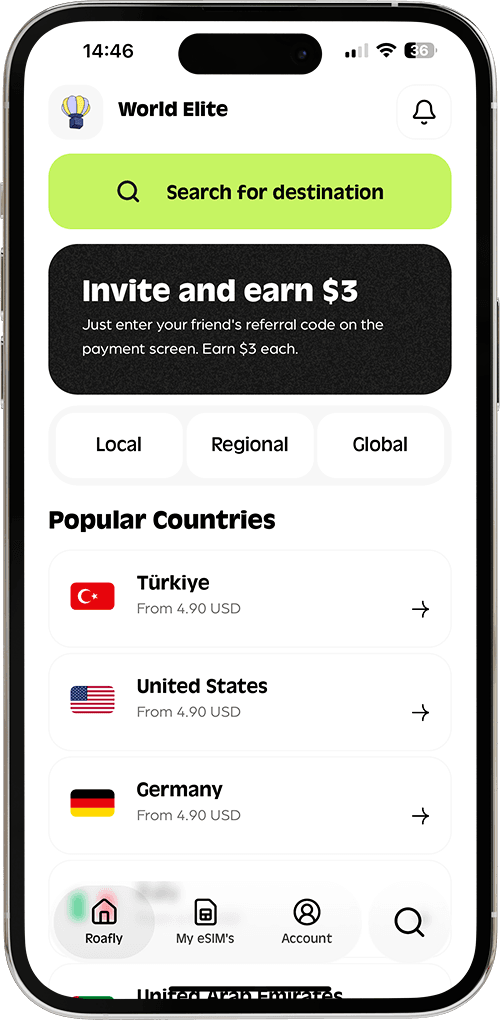
Avage Roafly rakendus.
-
Minge jaotisse Minu eSIM-id ja valige ostetud pakett.
-
Puudutage "Installi eSIM" ja järgige ekraanil kuvatavaid juhiseid. Teie telefon teeb ülejäänu automaatselt.
2. QR-koodi installimine Parim, kui ostsite arvutist või teil on koodi kuvamiseks mõni muu seade.
-
Minge jaotisse Seaded > Mobiilside (või Mobiilne andmeside) > Lisa eSIM.
-
Valige "Kasuta QR-koodi" ja skannige kood, mis on esitatud teie Roafly rakenduses või kinnitusmeilis.
3. Käsitsi installimine Kui te ei saa QR-koodi skannida, saate andmed käsitsi sisestada.
-
Minge jaotisse Seaded > Mobiilside > Lisa eSIM > Kasuta QR-koodi > Sisesta andmed käsitsi.
-
Kopeerige ja kleepige SM-DP+ aadress ja aktiveerimiskood oma Roafly rakendusest.
Kuidas oma eSIM-i aktiveerida (kohale jõudes): Kui olete sihtkohta jõudnud, minge jaotisse Seaded > Mobiilside. Valige oma Roafly eSIM, lülitage sisse "Lülita see liin sisse" ja veenduge, et "Andmeside rändlus" on Roafly eSIM-i jaoks lubatud.
👉 Vajate visuaalset abi? Paigaldusprotsessi samm-sammult ekraanipiltide vaatamiseks külastage meie üksikasjalikku iOS-i paigaldusjuhendit