
Pomalé rychlosti během cestování mohou být frustrující. S Roafly eSIM to je zřídka problém samotné eSIM. Obvykle je to způsobeno konflikty směrování sítě nebo omezeními místního pokrytí.
Zde je, jak zrychlit vaše připojení během několika sekund:
Krok 1: Vypněte VPN & Zkontrolujte DNS (Klíčové)
Datový provoz eSIM je již bezpečně směrován přes mezinárodní servery, aby vás připojil globálně. To funguje velmi podobně jako VPN. Spuštění VPN aplikace třetí strany (nebo použití vlastních nastavení DNS) navíc vytváří konflikt směrování, což drasticky zpomaluje váš internet nebo ho zcela blokuje.
-
Oprava: Vypněte všechny aktivní VPN aplikace a ujistěte se, že nastavení DNS vašeho zařízení je nastaveno na Automatické.
Krok 2: Vyberte síť ručně (Uzamkněte síť)
Ať už váš tarif Roafly podporuje jednoho nebo více místních operátorů, automatické nastavení vašeho telefonu může mít někdy potíže s udržením stabilního připojení. Ruční výběr a uzamčení sítě zabraňuje vašemu telefonu neustále vyhledávat signály a často okamžitě řeší problémy s rychlostí.
-
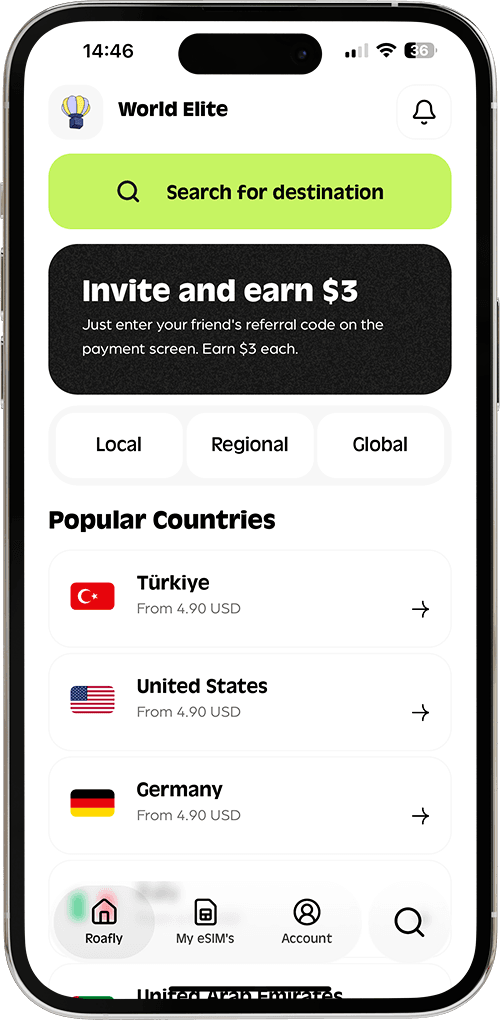
Zkontrolujte podporované sítě: Otevřete aplikaci Roafly > Moje eSIM > klepněte na podrobnosti vaší aktivní eSIM, abyste viděli podporované místní operátory.
-
iOS: Přejděte do Nastavení > Mobilní data > Vyberte vaši Roafly eSIM > Výběr sítě. Vypněte "Automaticky" a ručně klepněte na podporovanou síť ze seznamu.
-
Android: Přejděte do Nastavení > Připojení > Mobilní sítě > Operátoři sítě. Vypněte "Vybrat automaticky" a ručně zvolte podporovanou síť.
Krok 3: Obnovte připojení (Režim letadlo)
Někdy váš telefon potřebuje jen čerstvý ping k místní mobilní věži. Zapněte Režim letadlo na 30 sekund, poté jej vypněte. Tento jednoduchý trik donutí zařízení znovu se připojit k nejsilnějšímu dostupnému signálu.
Krok 4: Vynucení 4G/LTE místo 5G
Pokud se váš telefon snaží udržet slabý 5G signál, bude se cítit mnohem pomalejší než stabilní 4G připojení. Přejděte do nastavení Mobilních dat a změňte preferovanou hlasovou/datovou linku na 4G nebo LTE.
Proč vidím 3G nebo E (Edge)?
Pokud váš telefon zobrazuje "3G" nebo "E", přímo to souvisí s oblastí pokrytí místního operátora. I když je to méně běžné ve vysoce rozvinutých městech, cestování do venkovských oblastí, přírodních parků nebo dokonce pobyt uvnitř tlustých betonových budov může způsobit pokles signálu na 3G. Jedná se o omezení infrastruktury daného místa, nikoli o vadu vaší eSIM.